Kali-on-GCP Lifecycle Management
Treat your Kali-on-GCP VM instance as disposable. Keep necessary notes, screenshots, and deliverables outside the VM instance, for example, on your own computer or in a course document.
Before stopping Kali, assume that your next lab session may require a fresh instance.
Tools: Google Cloud console vs using kali-launcher
Use kali-launcher to create or recreate the Kali VM instance.
Use the Google Cloud console to stop and start an existing Kali VM instance.
Key principles for the life of a Kali-on-GCP instance
Subscribing to the Kali-on-GCP lab virtual machine access package gives your Google account access to the Kali on GCP image.
GCP resources are located in specific datacenter zones. A zone is located within a region. Zones have limited compute resource hardware availability.
When you use the kali-launcher script from the setup instructions, the launcher searches for a zone with sufficient available hardware to launch your Kali instance, and it launches a Kali instance for you in that zone. It uses a specific hardware configuration, which states the required CPU and RAM specifications. It also creates a disk for you from the access package image.
While an instance is running, its machine resources are reserved – the resources cannot be taken away.
When you use your Kali instance, such as when you set up Chrome Remote Desktop access, you are making modifications to your disk.
“Stopping” keeps the VM instance’s disk, but it releases the VM instance’s compute capacity. When you start it again, Google Cloud must check for available capacity for its zone and machine type. A stockout means that capacity is unavailable in that zone, so the stopped VM instance may fail to start. This is described in Google’s resource availability guidance. Dealing with a stockout involves recreating your Kali instance. This is described more later in this document.
The startup credit of $300 is enough to leave the instance running constantly for ~1.5 months
Regardless of whether your Kali instance is running or stopped, you incur costs for having a disk. As of 2026-10-02, those costs are about $24/month.
A running instance incurs CPU and RAM “Compute” costs. As of 2026-10-02, these costs for a Kali-on-GCP instance are around $170/month compute costs for an instance left running 24/7. This is in addition to the disk costs.
Using these estimates for one Kali VM instance running 24/7:
| Item | Calculation | Approximate amount |
|---|---|---|
| Compute per month | CPU and RAM | $170 |
| Disk per month | Persistent disk | $24 |
| Total per month | $170 + $24 | $194 |
| Time covered by $300 | $300 ÷ $194 per month | 1.55 months (about 46 days) |
This assumes the credit is used only for this instance and its disk. Actual costs vary with the machine type, zone, and other resource usage.
Keep Kali running throughout a lab
Remember that whenever you stop your Kali instance, there is a chance you will have to destroy it and recreate it when you try to start it again. Recreating it loses any in-progress work.
Therefore, leave Kali running for the duration of a lab.
Closing Chrome Remote Desktop or your browser does not stop the VM instance.
You can stop your Kali instance when you finish a lab
When you finish a lab, you can stop your Kali instance.
Stopping preserves your instance’s boot disk, but if you stop your instance, plan to possibly have to recreate it when you try to start it again. Do not stop a Kali instance without first copying all necessary course work off of it.
- Copy all necessary notes, screenshots, and deliverables off the VM instance. Check that you can open them outside Kali.
- On the VM instances page, check your course project, select your
kaliinstance, choose Stop, and confirm.
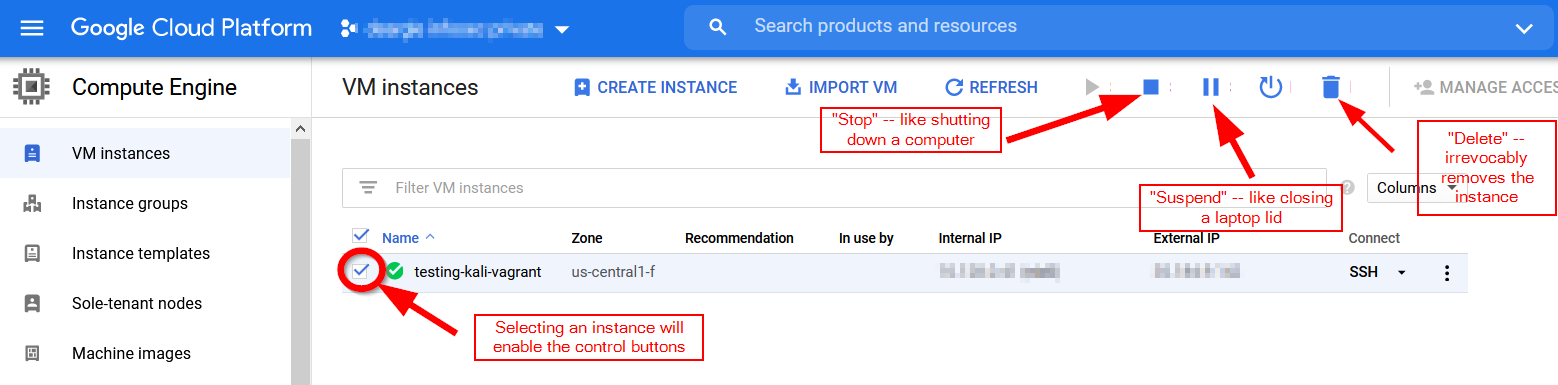
kali instance.Start a stopped Kali for your next lab
- On the VM instances page, select your
kaliinstance and choose Start / Resume. - Wait for it to show as running and allow a few minutes for Kali to boot.
- Connect through Chrome Remote Desktop.
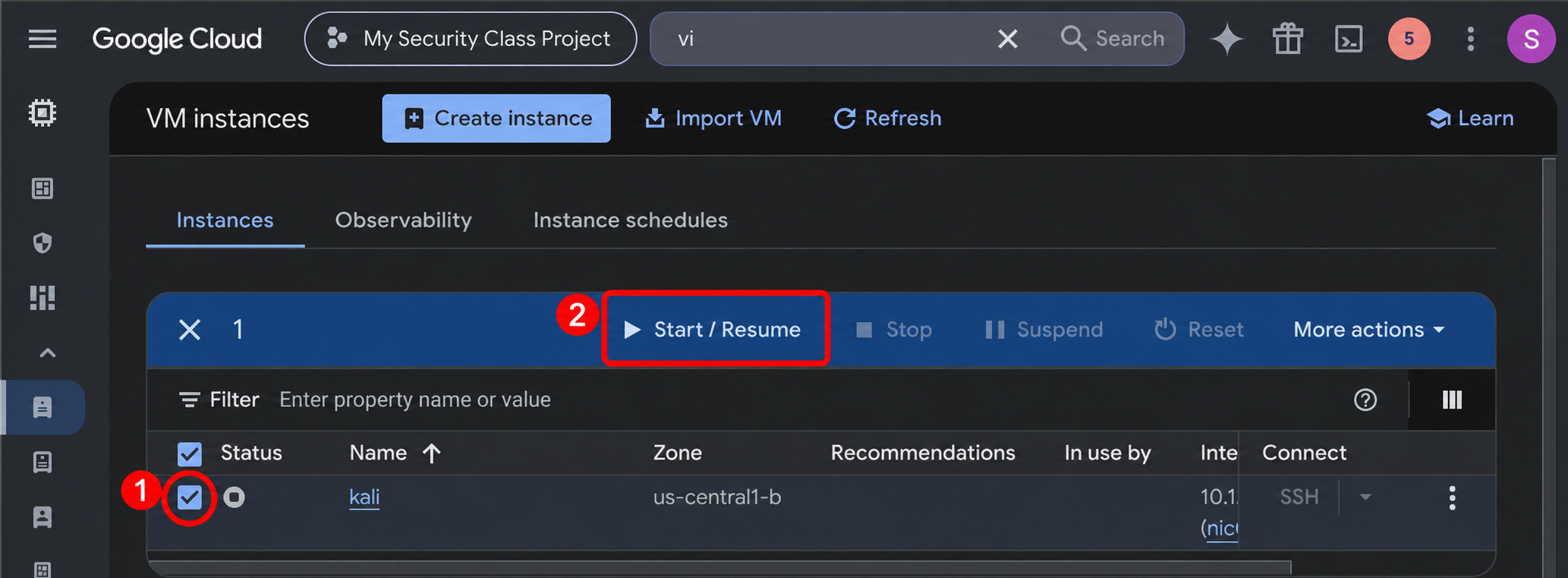
kali VM instance, and (2) click Start / Resume. Wait for the instance to show as running, allow a few minutes for Kali to boot, then connect through Chrome Remote Desktop.However, you might get a stockout when you try to start your stopped Kali instance.
To deal with a stockout, recreate your Kali instance using kali-launcher
A stockout event looks like this:
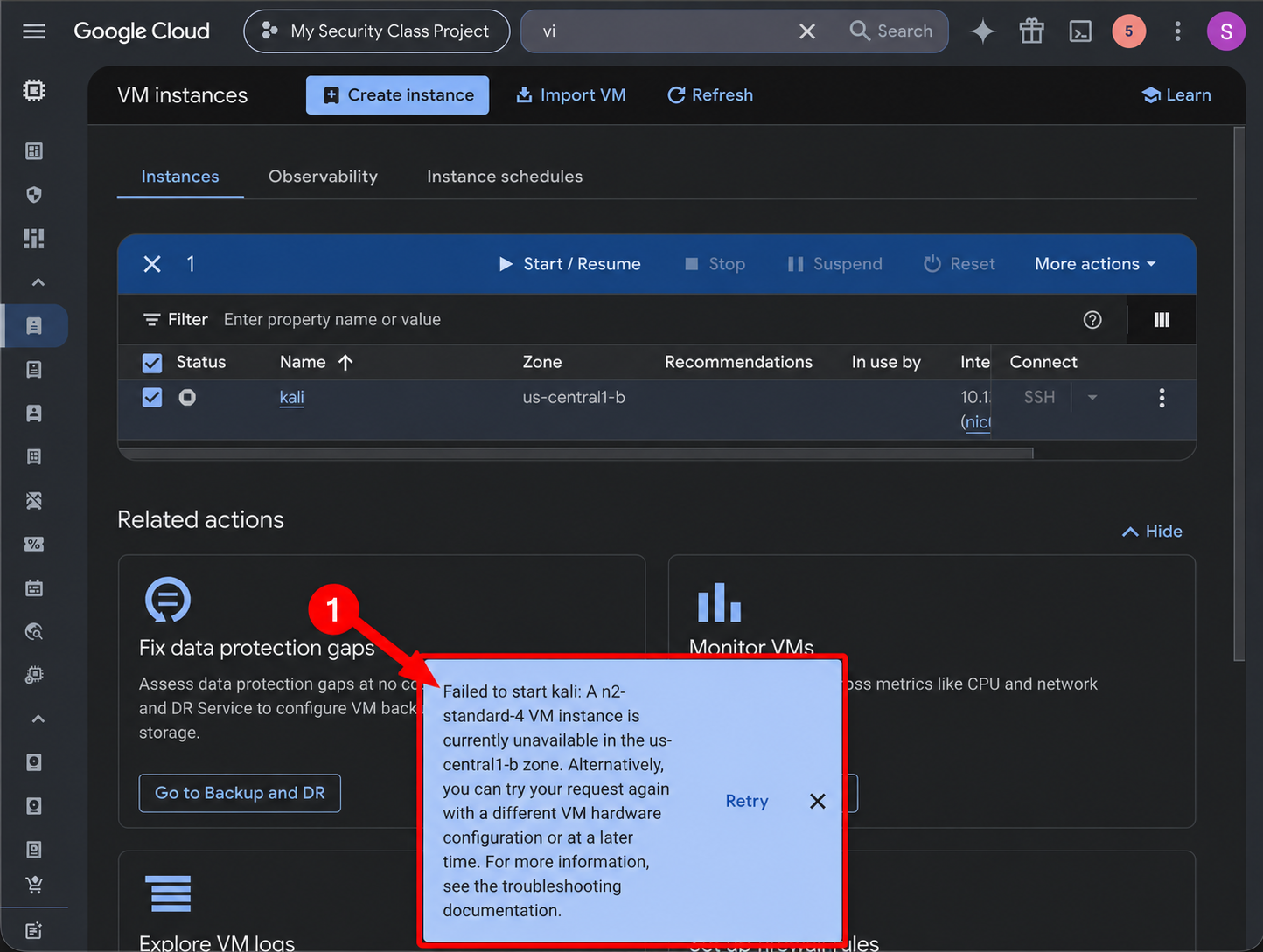
kali VM instance is selected, but Start / Resume fails because the requested machine type is unavailable in its zone. This is a stockout. Use kali-launcher --recreate in Cloud Shell to create a fresh instance, after ensuring necessary course work is stored offsite.If you have a stockout when you try to start a stopped Kali instance, you need to recreate your Kali instance using kali-launcher.
Recreation gives you a fresh Kali VM instance; it does not carry over your files, installed software, or Chrome Remote Desktop setup.
-
Open Cloud Shell using the
>_icon in the Google Cloud console. Confirm that you are using your course Google account and project. -
Update the launcher and recreate the instance:
kali-launcher --self-update
kali-launcher --recreate
Read the deletion prompt and confirm when you are ready. If Cloud Shell cannot find
kali-launcher, follow the installation steps in the GCP introduction, then run the commands above. - Wait for the launcher to report that the new instance was created. Refresh the VM instances list; the new VM instance may be in a different zone.
- Repeat the Chrome Remote Desktop setup and any lab-specific setup you need.
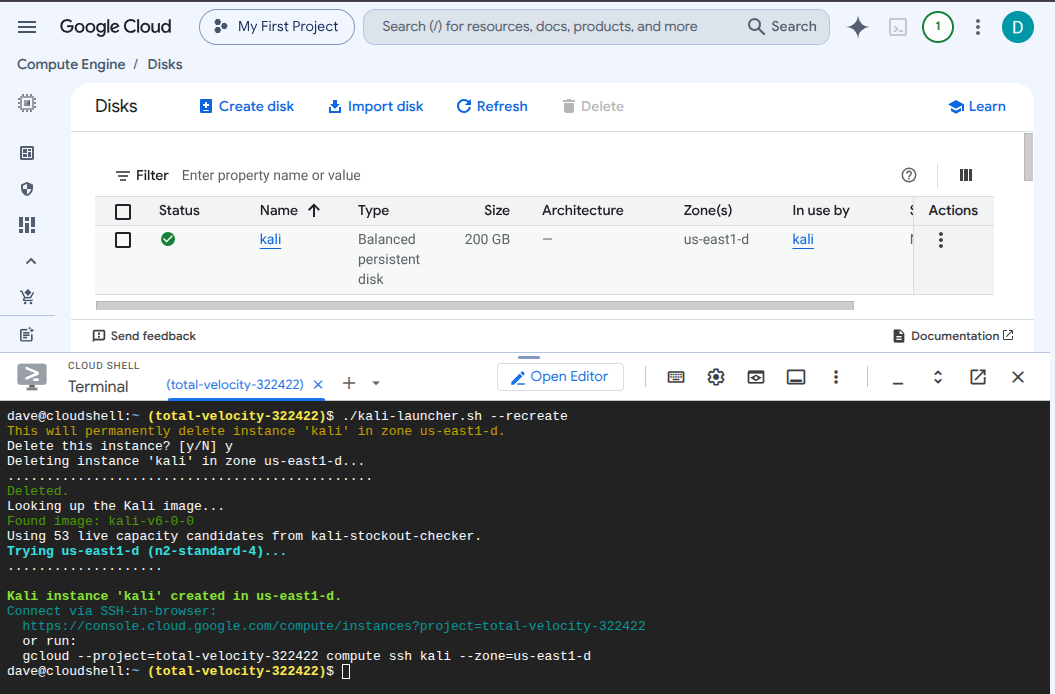
kali-launcher --self-update, then kali-launcher --recreate. Confirm deletion only after necessary course work is stored offsite. Wait for Kali instance created, then repeat Chrome Remote Desktop setup. This screenshot runs the downloaded script as ./kali-launcher.sh --recreate; the instructions above use its installed command, kali-launcher.Destroy Kali when you no longer need it
After copying any remaining course work off the VM instance, open Cloud Shell in the correct project and run:
kali-launcher --delete-only
Read and confirm the deletion prompt. When you need a fresh Kali VM instance again, run kali-launcher and repeat the Chrome Remote Desktop setup.